This walkthrough takes one project from empty to an exported file. The steps are the same in ChatCut Desktop, the web app, and the Agent Plugin; where a surface behaves differently, it is called out. If you have not chosen one yet, see Web, Desktop, and Agent Plugin.
You need a ChatCut account and, ideally, one video or audio file. If you have no footage, you can still finish this walkthrough by generating a clip in step 3.
1. Open a project
Sign in to ChatCut. If you already have a project open, you can continue in it. If your layout has separate Home and Projects navigation, select Projects to open the project list. Use the + button labeled Start from scratch, where shown, to create a blank project.
Separate Home and Projects navigation can appear in the sidebar, header, or mobile tabs; Home opens the Home page. Some earlier editor layouts use Home in the project toolbar to open the project dashboard; there, select New project to create a project. On a phone, the project picker fills the screen and keeps search, sorting, and account actions within reach.
2. Add your media
Open My Assets → Upload and choose Files…, Folder…, or From phone…. The files become project assets you can reuse in every timeline of that project.
You can also attach a file directly in the AI panel with Upload (+). That attachment is context for the current message only — it does not become a project asset. See My Assets / Media Pool for the difference.
Wait until the asset card finishes processing before using it in generation or export.
3. Describe the edit
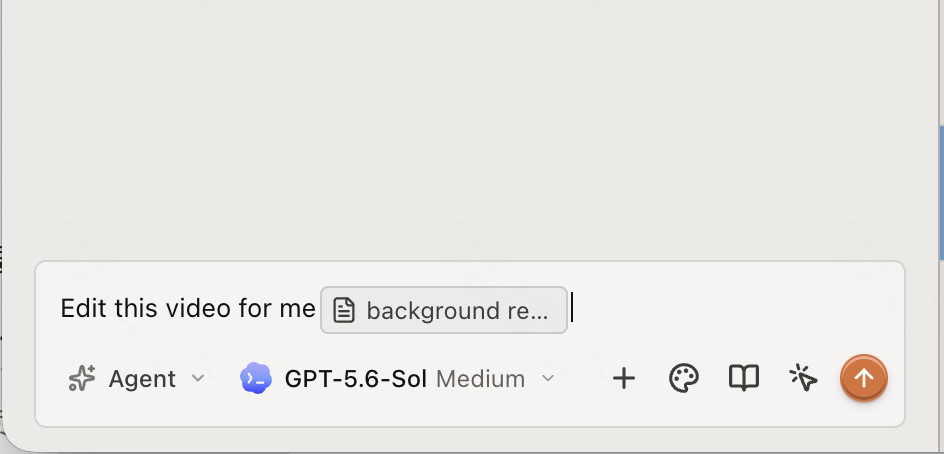
Enter what you want in the Prompt composer at the bottom of the AI panel, then select Send message.
- Keep the composer in Agent when ChatCut should read the project and edit the timeline for you — for example, “Cut @interview down to 60 seconds and remove the filler words.”
- Switch to Video Gen when you want to configure and submit one video-generation job instead.
Try a captioned first edit
Choose one short talking-head clip you own and wait for its card in My Assets to finish processing. Keep the built-in Agent selected. Paste this request, then type @ and select that uploaded clip before sending:
Use the referenced clip. Trim silence before the first spoken word and after the last spoken word. Keep every spoken word in order, with the original audio and framing. Add readable captions in the language spoken. Use only this footage; leave generated media out. Put the edit on the active timeline so I can play it before exporting.
This first pass keeps the source footage and gives you a captioned edit to review. You can ask for a different style or another delivery format after checking it.
On an empty conversation, workflow cards may fill the composer with a starter prompt. Selecting a card does not start the task; edit the text, then send it.
The built-in Agent uses variable ChatCut credits when it edits your footage, even when it generates no new media. There is no fixed credits-per-minute price for an Agent edit. Manual timeline editing, uploads, transcription, and export do not consume credits; plan limits can still apply. See Credits.
Read your plan and balance in the avatar menu before sending. Review any estimate or generation confirmation shown for the action. After it completes, use Credits history → Detail to check the actual deduction. See Generation Confirmations and Auto-Allow and Credits History.
4. Review the result
Agent progress and questions appear in the conversation, new media appears in My Assets, and edits appear in the active Timeline. Play the result in the Viewer.
For the captioned first edit, play from the first spoken word through the last. Check that the speech is complete, the captions match it, and the picture and original audio play together. Use Undo or ask for one precise correction if needed.
If an input is still processing, wait for it before retrying. If a step fails or the result is missing, keep the project and use Feedback or email team@chatcut.io with the step and visible error. Reporting a failure does not require another paid generation. See Upload, Generation, and Export Failures.
In the web editor, keep the project tab open while it prepares newly uploaded footage. If a step says the editor is disconnected, reopen the same project before retrying that step.
Anything the agent did is a normal timeline edit: drag clips to move them, drag an edge to trim, and use Undo if a change went further than you wanted. To keep a restore point before the next pass, open Versions and select Save Current Version.
On a phone, switch to the bottom Timeline tab to review the Viewer and tracks. Touch-drag the ruler to seek, a clip to move it, or a clip edge to trim; long-press a card in My Assets or Library to place it on the Timeline.
5. Export
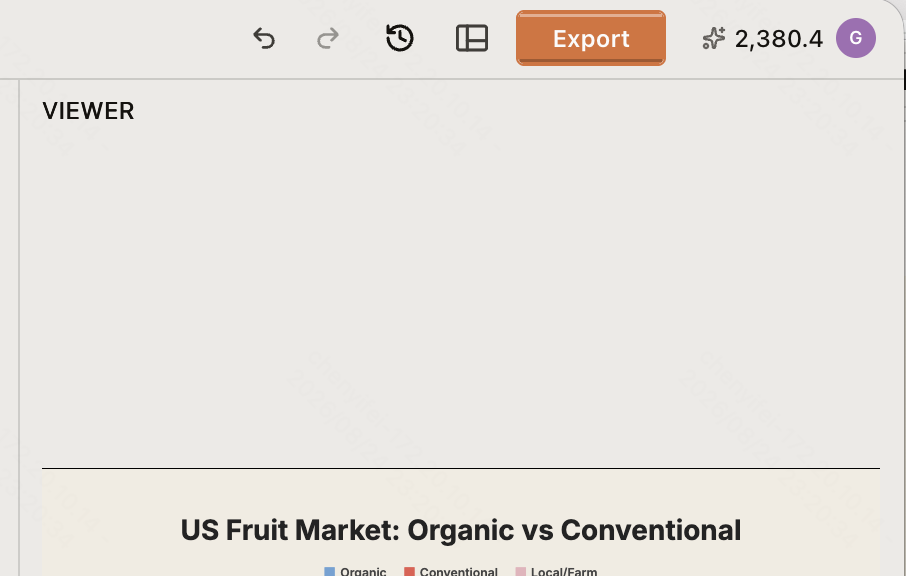
Select Export in the top bar and choose what to deliver: video, audio, subtitles, transparent graphics, or an editable project file for another editor.
Manual web video and audio export automatically chooses browser or cloud rendering. If you ask the Agent Plugin to export video or audio, it defaults to the open editor’s browser renderer and reports an error if unavailable; cloud export requires an explicit request. ChatCut Desktop renders video on your own computer, including 4K and HDR on capable hardware. See Web vs Desktop Export and Export Panel.
What to read next
- AI Panel Overview — every control in the AI panel and what it changes.
- Editor Layout — a button-by-button tour of the editor.
- Talking Head Edit — the most common first real project.